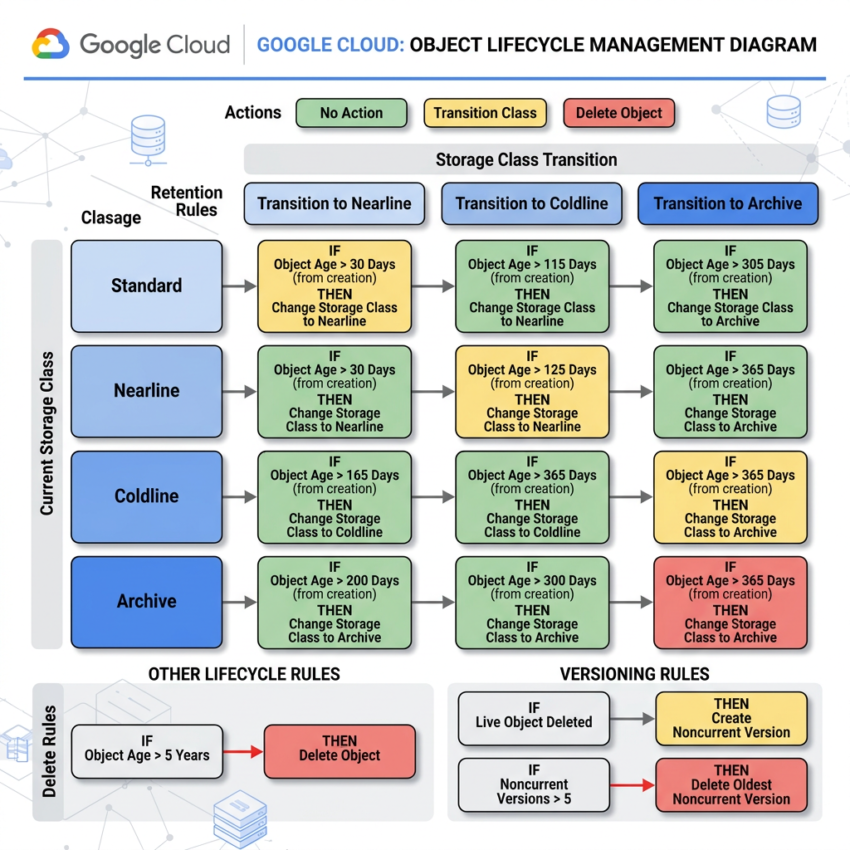
Automate Cloud Storage and Reduce Costs
Imagine your organization stores thousands of files in Google Cloud Storage every day—application logs, backups, images, videos, and reports.
As these files grow over time, manually moving older files to cheaper storage classes or deleting unnecessary data becomes difficult and time-consuming.
This is where GCP Object Lifecycle Management helps.
With Object Lifecycle Management, you can create automated rules that move, archive, or delete Cloud Storage objects based on conditions you define. As a result, you save both time and storage costs without any manual intervention.
What Is GCP Object Lifecycle Management?
GCP Object Lifecycle Management is a feature of Google Cloud Storage that automatically manages objects stored in a bucket.
Instead of manually reviewing files, you create lifecycle rules once and Google Cloud automatically performs the required actions.
Lifecycle rules can be based on:
- Object age
- Storage class
- Object versioning
- Creation date
- Custom conditions
Because of this automation, your storage remains organized, compliant, and cost-efficient.
How Does Object Lifecycle Management Work?
A lifecycle rule contains two components:
1. Condition
Defines when an action should occur.
Examples:
- Object is older than 30 days
- Object was created before a specific date
- Object belongs to a specific storage class
2. Action
Defines what should happen.
Examples:
- Move object to Nearline Storage
- Move object to Archive Storage
- Delete the object
Common Lifecycle Rule Examples
| Rule Type | Example Action |
|---|---|
| Age-Based Rule | Delete objects older than 90 days |
| Storage Class Rule | Move objects to Nearline after 30 days |
| Versioning Rule | Keep only the latest 3 versions |
| Date-Based Rule | Delete objects created before a specific date |
These rules help organizations automate data retention and storage optimization.
Real-World Example: Log Retention Strategy
Let’s assume your application generates log files every day.
Instead of managing them manually, you can configure GCP Object Lifecycle Management as shown below:
| Object Age | Storage Action |
|---|---|
| 0–30 Days | Standard Storage |
| 31–90 Days | Nearline Storage |
| 91–364 Days | Archive Storage |
| 365+ Days | Delete Object |
In this example:
- Objects older than 30 days move to Nearline Storage.
- Objects older than 90 days move to Archive Storage.
- Objects older than 365 days are automatically deleted.
How to Apply a Lifecycle Rule in GCP
Method 1: Using the GCP Cloud Console (Visual Guide)
This is the easiest method for quick changes or managing a small number of buckets.
- Open the Google Cloud Console and navigate to Cloud Storage > Buckets.
- Click on the Name of the bucket you want to configure.
- Select the Configuration tab at the top.
- Under the Object lifecycle management section, click Add a Rule.
- Configure Condition 1: Select your criteria (e.g., check the box for Age and enter
30days). Click Continue. - Configure Action 2: Choose what happens to matching objects (e.g., select Set storage class to Archive or Delete object). Click Continue.
- Click Save.
Method 2: Using the GCLOUD CLI (Recommended for Automation)
Step 1: Create a Lifecycle JSON File
Create a file named lifecycle.json on your local machine.
Example: This configuration automatically deletes any object older than 365 days and moves objects older than 90 days to COLDLINE storage.
{
“rule”: [
{
“action”: {
“type”: “SetStorageClass”,
“storageClass”: “COLDLINE”
},
“condition”: {
“age”: 90,
“matchesStorageClass”: [“STANDARD”]
}
},
{
“action”: {
“type”: “Delete”
},
“condition”: {
“age”: 365
}
}
]
}
Apply the JSON Policy to the Bucket
Run the following command in your terminal, replacing your-bucket-name with your actual GCP bucket:
gsutil lifecycle set lifecycle.json gs://your-bucket-nameExplanation of the command Syntax
| Command Part | Description |
|---|---|
| gsutil | Google Cloud Storage command-line tool |
| lifecycle | Lifecycle management command |
| set | Applies lifecycle rules |
| lifecycle.json | Configuration file containing lifecycle rules |
| gs://your-bucket-name | Target Cloud Storage bucket |
Note:While gsutil is still supported, Google Cloud is actively transitioning to the newer gcloud storage CLI component.The same result could have been obtained by using the below command as well.
gcloud storage buckets update gs://your-bucket-name --lifecycle-file=lifecycle.json
Method 3: Using Terraform (Infrastructure as Code)
If you manage your GCP infrastructure using Terraform, you can define lifecycle rules directly within the google_storage_bucket resource block.
resource "google_storage_bucket" "auto_managed_bucket" {
  name          = "my-enterprise-logs-bucket"
  location      = "US"
  force_destroy = false

  # Lifecycle Rule: Move to Nearline after 30 days
  lifecycle_rule {
    condition {
      age = 30
    }
    action {
      type          = "SetStorageClass"
      storage_class = "NEARLINE"
    }
  }

  # Lifecycle Rule: Permanently delete after 180 days
  lifecycle_rule {
    condition {
      age = 180
    }
    action {
      type = "Delete"
    }
  }
}
Cloud Digital Leader Practice Questions
Question 1
Scenario: Your Cloud Storage bucket contains application logs. You want logs older than 90 days to be deleted automatically.
Which Google Cloud feature should you use?
Answer: Object Lifecycle Management
Question 2
Scenario: You want files older than 30 days to move automatically from Standard Storage to Nearline Storage.
How would you implement this?
Answer: Create a lifecycle rule with:
"action": {
  "type": "SetStorageClass",
  "storageClass": "NEARLINE"
},
"condition": {
  "age": 30
}
Question 3
Scenario: You need to view the lifecycle policy currently applied to a bucket.
Which command should you use?
gsutil lifecycle get gs://your-bucket-name
Answer: The gsutil lifecycle get command retrieves the existing lifecycle configuration.
Whether you’re preparing for the Google Cloud Digital Leader certification or managing production workloads, understanding Object Lifecycle Management is an essential Google Cloud skill.